
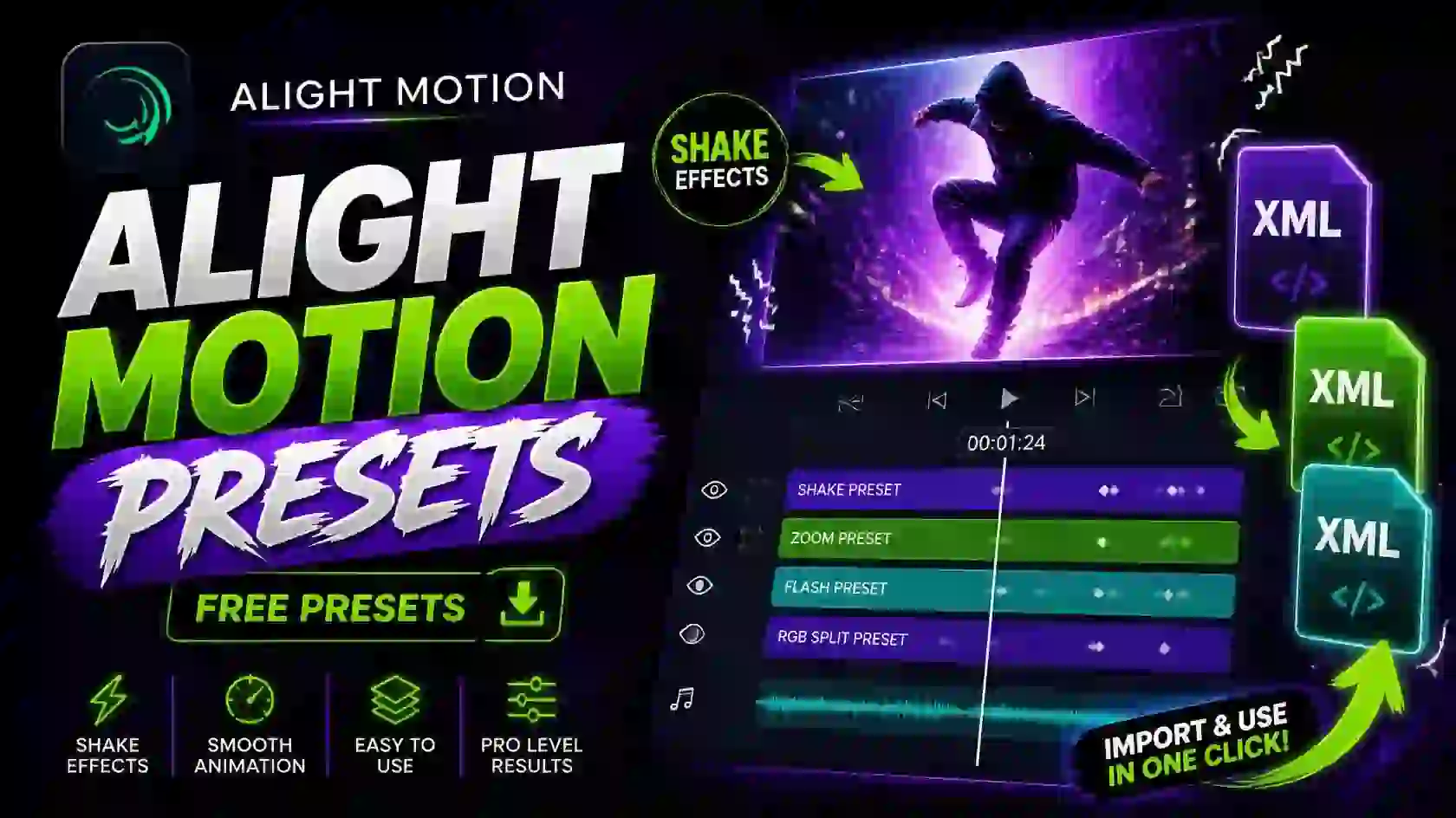
Creating eye-catching videos does not always require building every effect from scratch. With Alight Motion Effects Free Presets, you can quickly add ready-made animations, transitions, color effects, shakes, and other visual styles to your projects. Presets can save editing time while giving your videos a more polished and consistent look.
Whether you create TikTok videos, Instagram Reels, YouTube Shorts, AMVs, gaming edits, or motion graphics, the right preset can make your editing workflow much easier.
Why Use Alight Motion Effects Free Presets?
Presets are useful when you want to achieve a specific editing style without manually adjusting every setting. Instead of creating an effect from the beginning, you can import a suitable preset and customize it for your project.
Some key benefits include:
- Save time during the editing process
- Create professional-looking effects more easily
- Experiment with different editing styles
- Customize effects to match your video
- Make transitions and animations more consistent
- Improve the overall visual quality of your content
Popular Alight Motion Effects
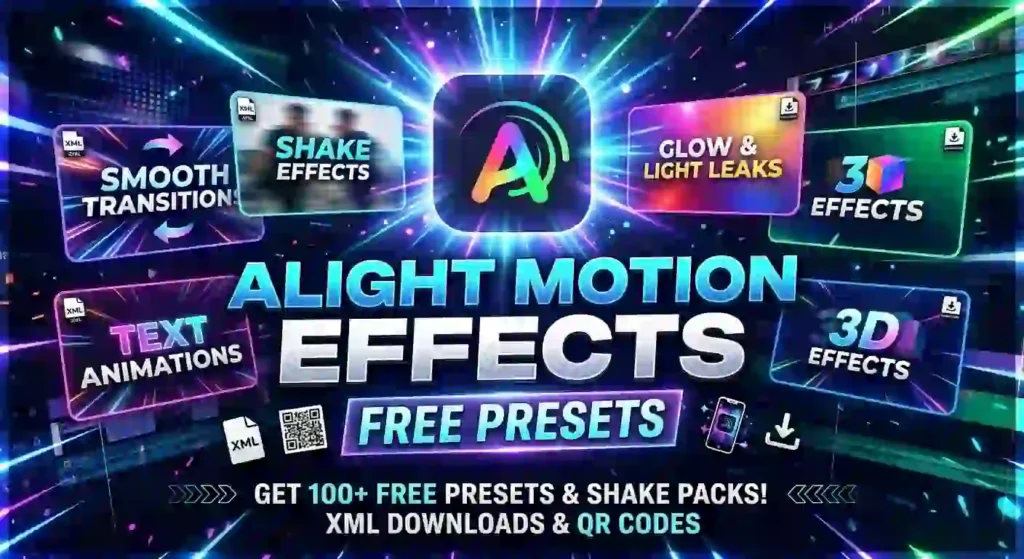
Alight Motion includes a wide range of effects that can be combined to create different visual styles. The official effects guide includes options such as Auto-Shake, Glow, Motion Blur, Lens Flare, RGB Split, Wave Warp, Zoom Blur, Glitch-style effects, and many others.
Shake Effect
Shake effects add movement and energy to clips. They are commonly used in music edits, action videos, gaming content, and short-form videos.
Glow Effect
Glow can add a soft light around text, objects, or other elements. It works particularly well for neon, cinematic, and atmospheric edits.
Glitch Effect
Glitch-style effects can create a distorted digital appearance. They are useful for technology-themed videos, gaming edits, intros, and creative transitions.
Blur Effect
Blur effects can soften backgrounds, create motion, or help direct attention toward a particular part of a scene.
3D Effects
3D-style effects can add depth and dimension to text, graphics, and other visual elements. They can be useful for intros, titles, and motion graphics.
Zoom Effect
Zoom effects create smooth in-and-out movement and can be combined with keyframes, motion blur, and transitions for more dynamic edits.
Text Animation Effects
Text presets can make titles, captions, and lyrics more engaging. Instead of manually animating every text element, you can start with a preset and adjust it to match your style.
Alight Motion XML Presets
Alight Motion XML presets are a convenient way to reuse effects, animations, and editing settings in your projects. Instead of creating every effect manually, you can import an XML preset and adjust it according to your video. This can be especially helpful when working on transitions, shakes, text animations, or other motion effects.
When looking for Alight Motion Effects Free Presets, XML presets can give you a useful starting point for creating different editing styles. After importing a preset, you can change the timing, colors, intensity, position, and other settings to make the effect fit your project.
How XML Presets Help With Editing
XML presets can save time when you frequently use similar effects in your videos. For example, if you like a particular shake, zoom, or text animation, an XML preset can help you recreate that style without rebuilding the entire effect from scratch.
They can be useful for:
- Shake and motion effects
- Smooth transitions
- Text animations
- Zoom effects
- Glow and blur effects
- Velocity-style edits
- Creative visual effects
Customize XML Presets for Better Results
Rather than using a preset exactly as it is, try adjusting its settings to match your footage. Small changes to timing, speed, intensity, and colors can make the final result look much more natural and unique.
If an XML preset was created for a different version of Alight Motion, some effects or settings may not work exactly as expected. In that situation, using a compatible version or recreating the unsupported effect manually may help.
Alight Motion Effects Free Presets for Different Editing Styles
Different projects need different types of effects. A shake preset may work well for an action edit, while a glow or color preset may be better for a cinematic video.
| Preset Type | Best For |
|---|---|
| Shake Presets | Action and music edits |
| Glow Presets | Neon and cinematic videos |
| Glitch Presets | Gaming and technology edits |
| Zoom Presets | Reels and short videos |
| Text Presets | Titles, captions, and lyrics |
| Color Presets | Cinematic and aesthetic edits |
| 3D Presets | Intros and motion graphics |
| Transition Presets | Scene-to-scene editing |
How to Use Alight Motion Presets
Using a preset generally involves importing it into your project and then adjusting the settings according to your needs. Depending on the preset, you may receive a project package, project link, or another supported format.
After importing a preset, replace the original media with your own clips and customize properties such as timing, colors, intensity, scale, and position. This allows you to keep the basic animation while creating a unique result.
How to Customize Presets
One of the biggest advantages of presets is that they do not have to remain exactly as downloaded. You can modify them to fit your video.
For example, you can adjust:
- Effect intensity
- Animation speed
- Colors and brightness
- Motion direction
- Blur amount
- Keyframe timing
- Text size and position
- Opacity and blending
Experimenting with these settings can help you create an effect that looks different from the original preset.
Are Free Presets Worth Using?
Yes, free presets can be useful for both beginners and experienced editors. Beginners can use them to understand how different effects and animations are constructed, while experienced editors can use them as a starting point for more advanced projects.
However, always download preset files from sources you trust. Avoid suspicious files, unknown APKs, or downloads that request unnecessary permissions. If a preset is no longer compatible with your version of Alight Motion, try another compatible preset or update the app.
Alight Motion Shake Presets
Shake effects are a popular choice for adding energy and movement to video edits. Alight Motion Effects Free Presets can make it easier to create shake animations without manually adjusting every keyframe. You can use shake presets for music edits, gaming videos, AMVs, Reels, Shorts, and other fast-paced content.
A good shake preset can create movement around a clip, text, image, or other layer. After applying the preset, you can adjust the speed, intensity, direction, and timing to match the style of your video.
Why Use Shake Presets?
Creating a smooth shake effect manually can take time, especially when you are working with multiple keyframes. A ready-made preset gives you a starting point that you can customize according to your project.
Shake presets can be useful for:
- Music and beat-synced edits
- Gaming videos
- AMVs and cinematic edits
- Text animations
- Transition effects
- Short-form social media videos
- Action and fast-paced clips
How to Get Better Results
Avoid making every shake extremely strong, as excessive movement can make a video difficult to watch. Start with a moderate intensity and adjust it according to the beat or movement in your footage. Combining a shake with motion blur, zoom, or other effects can also create a smoother and more polished result.
When using Alight Motion Effects Free Presets, always check whether the preset is compatible with your Alight Motion version. Some presets may use effects or settings that are unavailable in older versions, so compatibility can affect how the final animation looks.
Frequently Asked Questions (FAQ)
What are free Alight Motion presets?
Free presets are custom visual styles, transitions, color corrections, or text animations created by other users or the app community that you can download and use without paying. They save time by eliminating the need to build complex keyframe animations from scratch. [1, 2]
How do you import and use a preset?
- Open the Alight Motion app and create or open a project.
- Tap the plus (+) icon or look for templates/presets in the app menu.
- Select Discover More Templates or click an external share link (
.xml). - Tap Import to add the preset to your timeline and apply it to your media. [1, 2, 3]
Watch this video to learn how to find and use presets inside your projects:
Are presets completely free?
While Alight Motion offers free built-in templates and community links, the app itself operates on a freemium model with subscription options for full feature access. Many creators share free .xml files or project links on YouTube, Telegram, and TikTok, but caution is advised with unofficial third-party APKs or password-locked download links. [1, 2]
Can you edit an imported preset?
Yes, you can customize any imported preset. Select the layer or group containing the preset on your timeline, open the effect or keyframe settings, and adjust the parameters (such as color, speed, or position) to fit your specific video clip.
If you want, tell me:
- Are you looking for a specific type of preset (like text animation, shake, or color correction)?
- Are you using Android or iPhone?
I can give you more exact steps or recommendations.
Final Verdict
Alight Motion Effects Free Presets are a great way to make video editing faster and more creative. Whether you need shake effects, transitions, zoom animations, glow effects, or text animations, presets can give you a useful starting point without creating every effect from scratch.
The key is to customize each preset according to your project. Adjust the timing, intensity, colors, and other settings so the effect feels natural and matches your editing style. Also, make sure the preset is compatible with your Alight Motion version before using it.
Overall, free presets can save time and help both beginners and experienced editors create more engaging videos.