
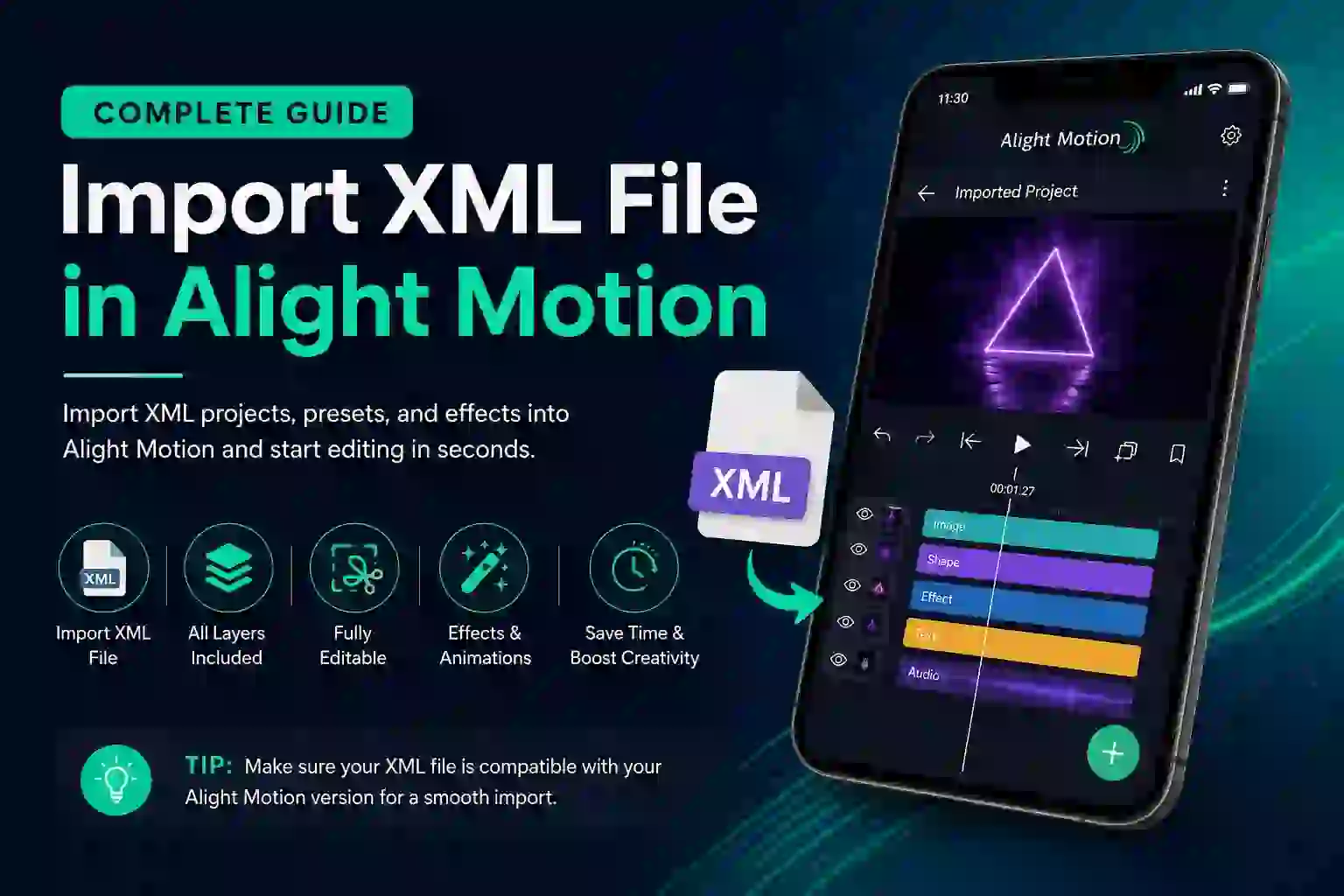
If you have downloaded an XML project or preset and want to use it in Alight Motion, importing the file is usually a straightforward process. Learning how to import XML file in Alight Motion can save you time because you can reuse ready-made animations, effects, transitions, and other project elements instead of creating everything from scratch.
XML files are commonly shared for different editing styles, including shakes, transitions, text animations, zoom effects, and other creative projects. Once the XML file is imported successfully, you can customize the project with your own media and settings.
What Is an XML File in Alight Motion?
An XML file can contain project information such as layers, effects, keyframes, colors, and other editing settings. Editors can share these project elements so other users can import and modify them in their own Alight Motion projects.
Before you import an XML file in Alight Motion, make sure the file comes from a source you trust and is compatible with your app version.
How to Import XML File in Alight Motion
The exact import experience can vary depending on your device and Alight Motion version, but the general process is simple.
Step 1: Download the XML File
First, download the XML project or preset you want to use. Save the file somewhere that you can easily access from your device.
Step 2: Open the XML File
Locate the downloaded XML file using your device’s file manager. Tap the file and check whether Alight Motion appears as an available app for opening or importing it.
Step 3: Import the Project
Select Alight Motion when prompted. If the file is compatible, the app should process the project and make its contents available for editing.
This is the main step when learning how to import XML file in Alight Motion. If the import does not work, check the file format, app version, and whether the XML file was created correctly.
Step 4: Open the Imported Project
After the XML project has been imported, open it in Alight Motion and review the layers, effects, text, and animations. Make sure everything appears correctly before making further changes.
Step 5: Customize the XML Project
Now you can replace sample media with your own photos or videos. You can also change text, colors, timing, effects, and keyframes to match your editing style.
Why Import XML Files in Alight Motion?
Importing XML projects can make editing faster and give you a useful starting point for creative projects. Instead of manually recreating complicated animations, you can import an existing project and modify it.
Some common uses include:
- Shake animations
- Smooth transitions
- Animated text
- Zoom effects
- Glitch effects
- Motion graphics
- Beat-synced edits
- Custom visual effects
Common Problems When Importing XML
Sometimes an XML file may not import correctly. One possible reason is that the project was created using a different Alight Motion version. Certain effects or settings may also be unavailable in your current version.
If you cannot import an XML file in Alight Motion, check the following:
- Make sure the XML file is complete.
- Check that the file has the correct XML format.
- Use a compatible Alight Motion version.
- Make sure the file is not corrupted.
- Try importing a different XML project to identify whether the problem is with the file.
How to Edit an Imported XML Project
Once the XML project is successfully imported, you can customize almost every useful element available in the project. Select a layer from the timeline and modify its properties according to your needs.
You can change text, replace media, adjust colors, modify keyframes, and change effect intensity. This makes an imported XML project much more flexible than simply using it without any modifications.
Tips Before You Import an XML File
Always keep a backup of your important projects before importing new files. It is also better to test an XML project before using it in an important video.
If an XML file contains effects that are unavailable in your version of Alight Motion, the project may look different after importing. Using a compatible version can help avoid missing effects and other compatibility issues.
Import XML File in Alight Motion
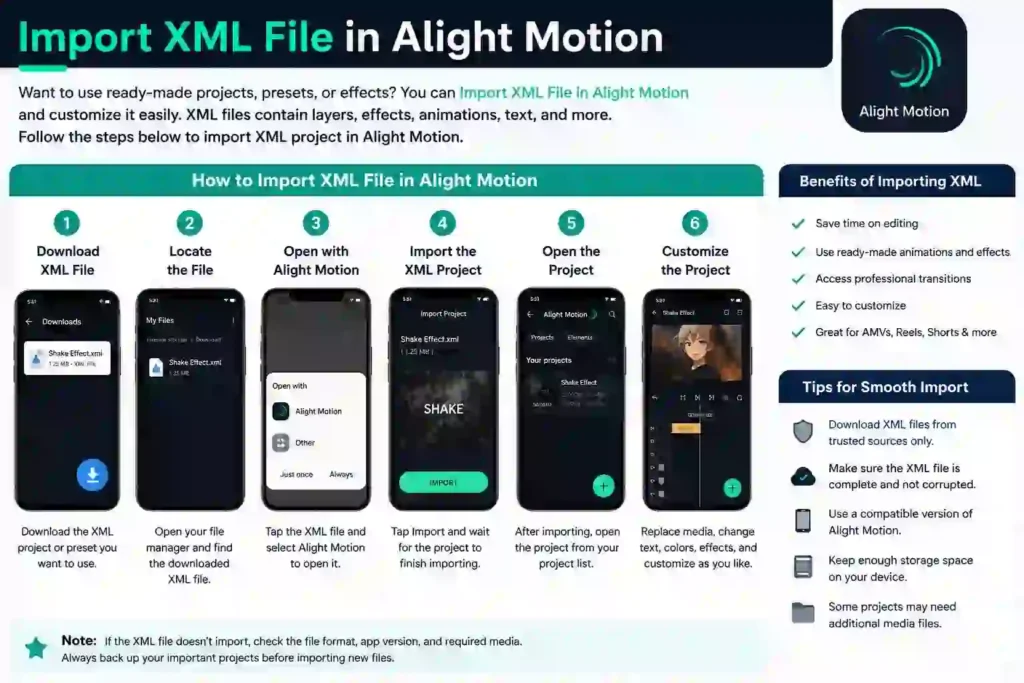
If you want to use ready-made projects, presets, effects, or animations, you can Import XML File in Alight Motion and customize the imported project according to your needs. XML files can contain complete Alight Motion projects with layers, keyframes, effects, transitions, text, and other editing elements.
Learning how to Import XML File in Alight Motion is useful when you download an XML project from another source and want to use it directly inside the app. The process is simple, but you need to make sure that the XML file is compatible with your Alight Motion version.
How to Import XML File in Alight Motion
To Import XML File in Alight Motion, follow these simple steps:
1. Download the XML File
First, download the XML project or preset that you want to use. Make sure the file has been downloaded completely before trying to Import XML File in Alight Motion.
If the XML file is shared through a download link, save it to your device so you can easily access it later.
2. Locate the XML File
After downloading the file, open your device’s file manager and locate the XML file. Knowing where the file is saved makes the Import XML File in Alight Motion process much easier.
If the file is inside a ZIP folder, extract the ZIP file first and look for the XML project file.
3. Open the XML File
Tap the XML file and select Alight Motion if your device provides an option to open or share the file with an application.
Depending on your device and Alight Motion version, the import option may appear differently. The important step is to open the XML project through Alight Motion so the app can process the file.
4. Import the XML Project
Once Alight Motion recognizes the file, use the available import option to Import XML File in Alight Motion. Wait for the project to finish importing.
Large XML projects may take a little longer because they can contain multiple layers, effects, keyframes, and other editing elements.
5. Open the Imported Project
After you Import XML File in Alight Motion, open the project from your project list. You should see the imported layers, animations, effects, text, and other elements included in the XML file.
You can now preview the project and check whether everything has imported correctly.
6. Customize the Imported XML Project
One of the biggest advantages of an XML project is that you can edit it after importing. Once you Import XML File in Alight Motion, you can change colors, text, images, videos, effects, timing, keyframes, and other supported elements.
This allows you to use an existing XML project as a starting point instead of creating the entire animation from scratch.
Why Import XML File in Alight Motion?
There are several reasons to Import XML File in Alight Motion. XML projects can save editing time and give you access to ready-made animations and effects.
Some common benefits include:
- Save time when creating complex edits
- Use ready-made animations and effects
- Access custom transitions and presets
- Reuse existing project structures
- Customize layers and keyframes
- Create AMVs and social media edits faster
- Experiment with different animation styles
When you Import XML File in Alight Motion, you can also learn how different layers, effects, and keyframes are arranged inside a project.
Import XML Project in Alight Motion for Editing
After you Import XML File in Alight Motion, the project can usually be customized according to the elements included in the file. You can open individual layers and modify their properties.
For example, you may replace existing media, change text, adjust colors, modify animation timing, or change effects. This makes an imported XML project more flexible than simply using a finished video.
If you regularly work with templates and presets, learning to Import XML File in Alight Motion can make your editing workflow faster.
Common Problems When You Import XML File in Alight Motion
Sometimes users experience problems when they Import XML File in Alight Motion. The XML file may fail to import, the project may open incorrectly, or some elements may be missing.
Common causes include:
- Incompatible Alight Motion versions
- Damaged or incomplete XML files
- Missing media files
- Unsupported effects
- Incorrect file format
- Very large or complex projects
- Problems with the downloaded file
If you cannot Import XML File in Alight Motion, first make sure the XML file is complete and compatible with your version of the app.
Tips Before You Import XML File in Alight Motion
Before you Import XML File in Alight Motion, keep these tips in mind:
- Download XML files from sources you trust.
- Keep a backup of your existing projects.
- Make sure you have enough storage space.
- Check whether the XML project requires additional media.
- Use a compatible Alight Motion version.
- Avoid opening suspicious files from unknown sources.
- Give the app enough time to process large projects.
Following these steps can help make the Import XML File in Alight Motion process smoother and reduce common import problems.
Frequently Asked Questions
Can I import any XML file into Alight Motion?
Not necessarily. XML files can be created for different projects and versions, so compatibility may vary. Make sure the XML file is intended for Alight Motion and is compatible with your app version.
Why is my XML file not importing?
The file may be corrupted, incomplete, incompatible with your Alight Motion version, or created with unsupported effects. Try checking the file and importing another compatible XML project.
Can I edit an imported XML project?
Yes. After importing the project, you can usually modify available layers, text, media, colors, effects, and keyframes according to the project structure.
Is it safe to download XML files?
Only download XML files from sources you trust. Avoid suspicious downloads and files that require unnecessary permissions or additional unknown applications.
Final Verdict
Learning how to import XML file in Alight Motion can make your editing workflow faster and more flexible. XML projects give you a ready-made foundation that you can customize instead of creating every animation and effect manually.
For the best results, always check compatibility before importing an XML project and customize the imported elements to match your own video. This way, you can save editing time while still creating content that feels original and personal.