
Alight Motion makes video editing smoother with its remarkable features. Despite all these advantages, Alight Motion Pro APK may not work properly or may lag for certain reasons. If you are using this app, you may experience lag while editing. Let’s discuss why Alight Motion is so laggy and how to fix it.
Why Is Alight Motion So Laggy?
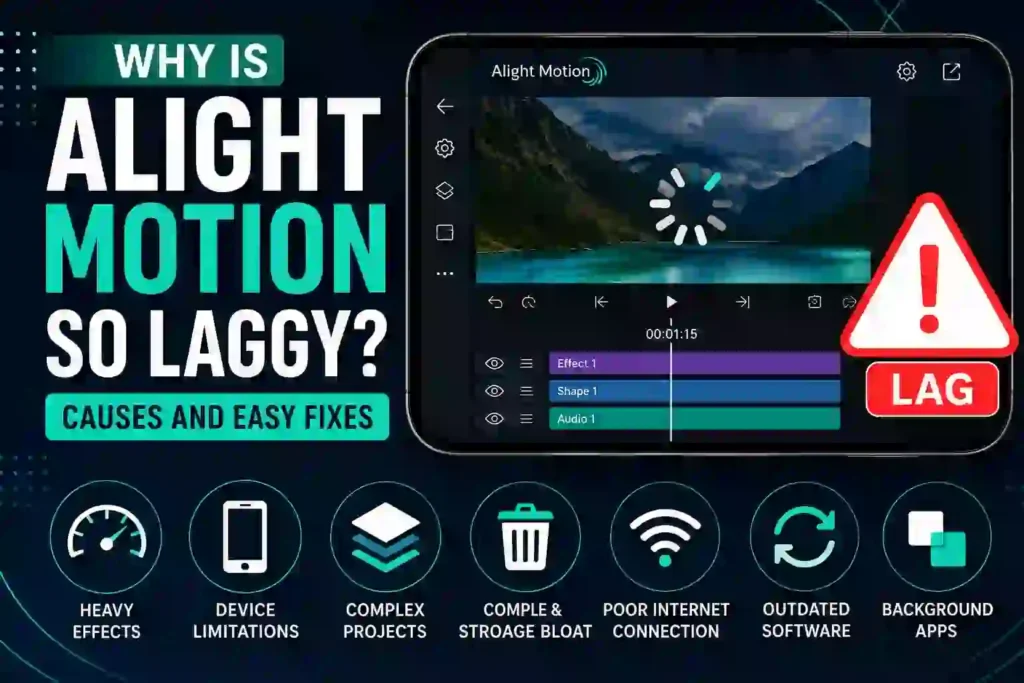
Alight Motion is a popular editing app with robust tools. Its remarkable features enable you to create professional-quality content. Sometimes, it may lag due to certain reasons, such as device limitations, project complexity, and many more. Let’s discuss all the factors that lead to lagging in detail.
Frame-Intensive Effects
Alight Motion offers effects such as Outline Fade, Shadow, Matte Choker, Glow, and Blur. These effects play an important role in improving your content, but they can also require significant system resources. When you apply multiple effects and layers simultaneously, they may overload your device and affect the app’s performance.
Device Limitations
The minimum system requirements to use Alight Motion include:
- Android 6.0+ with 1.5 GB+ RAM
- iOS 14.4+
- Windows 7
- macOS 11
- 4 GB+ RAM when using an Android emulator
Smartphones with limited RAM may have difficulty running the app smoothly. For better performance, use a device with sufficient RAM and an updated operating system.
Outdated Software
Alight Motion may lag if you are using an outdated version of the app. Low-end devices can also experience performance issues. Always keep the app and your smartphone updated. Newer versions may include bug fixes and performance improvements.
Too Many Background Apps
Running multiple apps in the background consumes your device’s RAM and processing power. Since Alight Motion also requires significant system resources during editing, background applications can increase the chances of lagging.
Cache and Storage Bloat
Alight Motion stores cache and temporary files to improve performance. However, when these files accumulate or your device runs low on storage space, the app’s performance may be affected.
Complex Projects
Projects containing multiple layers, keyframes, animations, and effects can put considerable pressure on your device. As a result, Alight Motion may freeze, crash, or become slow during editing.
Poor Internet Connection
A poor or unstable internet connection can affect downloading and updating the app. However, you generally do not need an internet connection to work on locally stored offline projects.
High Video Resolution and Frame Rates
Editing Ultra HD videos or videos with 60+ FPS can put a heavy load on your device. Editing at 1080p or a lower resolution can reduce the chances of lagging and provide a smoother editing experience.
Using too many effects can sometimes slow the app. Explore our collection of free Alight Motion effects and presets to find lightweight and optimized options.
Why Is Alight Motion So Laggy?
If you are asking why is Alight Motion so laggy, the problem can usually be linked to your device, project settings, or the app itself. Many users wonder why is Alight Motion so laggy when editing videos with multiple layers, keyframes, animations, and heavy effects. Limited RAM, insufficient storage, outdated software, and too many background apps can also reduce performance. Another common reason why is Alight Motion so laggy is editing high-resolution videos at high frame rates, which puts extra pressure on your device. To fix these issues, close unnecessary background apps, clear the Alight Motion cache, free up storage, reduce the preview resolution, and limit resource-intensive effects. If you still wonder why is Alight Motion so laggy after trying these methods, make sure both your device and the app are updated and that your device meets the recommended requirements for smooth editing.
How to Stop Alight Motion From Lagging on Android
Alight Motion may lag due to the reasons discussed above. You can use the following tips and tricks to improve its performance.
Limit Heavy Projects
Using unnecessary layers and keyframes can overload your device. To improve app performance, reduce project complexity or temporarily disable unnecessary layers and effects.
Clear Cache and Free Storage
Regularly clear Alight Motion’s cache files and remove unnecessary files and media from your device. Keeping enough free storage can help improve overall device performance and reduce app lag.
Update Your Device
A high-end device can provide a smoother editing experience. It is recommended to use a device that meets or exceeds Alight Motion’s system requirements. Your device should have sufficient RAM and available storage for better performance.
Update the App
Keeping the app updated can help you access the latest improvements and bug fixes. Download the latest version of Alight Motion from a trusted source.
[Add Download Link Here]
Close Background Apps
Before opening Alight Motion, close unnecessary apps running in the background. This frees up RAM and processing power, which can reduce the chances of lagging.
Many Android phones also offer a Performance Mode that can help optimize system resources while using demanding applications.
Use Low Preview Resolution
Alight Motion allows you to lower the preview resolution to 360p or 480p instead of 1080p. Lowering the preview resolution can reduce the load on your device without affecting the final export quality.
Use a Stable Internet Connection
A stable internet connection is useful when downloading or updating the app. Make sure your device has a reliable Wi-Fi or mobile data connection during these processes.
Once your app runs smoothly, learn how to add text in Alight Motion to make your videos more engaging and dynamic.
FAQs Related to Alight Motion Lagging
Can Alight Motion’s Older Version Lead to Lagging?
Yes, an outdated version of Alight Motion may cause performance issues. Keeping the app updated can provide access to bug fixes, improvements, and better compatibility.
How Much Android RAM Is Required to Run Alight Motion?
Alight Motion requires at least 1.5 GB of RAM according to the minimum requirements mentioned above. Devices with more RAM can generally handle complex editing projects more comfortably.
Which Processor Is Best for Alight Motion?
A capable modern processor with good graphics performance is recommended for Alight Motion. Snapdragon, Exynos, MediaTek, Kirin, and other capable mobile chipsets can provide good performance depending on the specific processor and device.
Can I Run Alight Motion Mod APK on My PC?
Alight Motion can be used on a PC through an Android emulator such as BlueStacks, NoxPlayer, or MEmu. Performance will depend on your PC’s processor, RAM, graphics capabilities, and emulator configuration.
Can the Alight Motion App Work Offline?
Yes. Alight Motion can be used for local editing without an active internet connection. However, internet access may be required for downloading, updating, or accessing certain online resources.
Why Is Alight Motion Glitching?
Alight Motion may glitch or become unstable because of several factors, including:
- Insufficient RAM or processing power
- Heavy projects
- Outdated app versions
- Corrupted project files
- Full or nearly full storage
- Unsupported devices
Does Alight Motion Lag Even on High-End Devices?
Yes. Even high-end devices can experience lag when handling extremely complex projects with numerous layers, animations, keyframes, and resource-intensive effects.
Is It Safe to Use the Modded Version of Alight Motion?
Modded APKs can carry security and privacy risks, especially when downloaded from unknown sources. For the safest experience, use the official version of Alight Motion from a trusted app store or official source.
How Can I Fix Alight Motion Lag on Lower-End Devices?
To improve Alight Motion’s performance on a lower-end device, try these steps:
- Lower the preview resolution
- Clear the cache regularly
- Limit heavy effects and layers
- Close unnecessary background apps
- Keep sufficient free storage
- Avoid unnecessarily high resolutions and frame rates
Why Is Alight Motion So Laggy on Your Device?
If you still wonder Why Is Alight Motion So Laggy, your device specifications may be another reason. Older or low-end smartphones may struggle with large Alight Motion projects. Limited RAM can make Alight Motion not running smoothly, especially when other apps are running in the background.
Storage space can also affect performance. When your phone has very little free storage, you may notice that Alight Motion not running smoothly becomes more frequent. Keeping enough free storage and closing unnecessary apps can help improve overall performance.
Heavy Effects Can Make Alight Motion Lag
Another important reason Why Is Alight Motion So Laggy is the use of demanding effects. Effects such as blur, glow, shadows, particles, and complex animations can require more processing power. Using several heavy effects together can make Alight Motion not running smoothly, particularly on devices with limited hardware.
To reduce lag, try disabling unnecessary effects while editing. You can add or enable some effects after completing the main editing work. This can make it easier to understand Why Is Alight Motion So Laggy and improve the editing experience.
High Resolution Can Cause Lag
High-resolution videos can also explain Why Is Alight Motion So Laggy. Editing 1080p or higher-resolution content requires more resources than working with smaller media files. If Alight Motion not running smoothly, try reducing the project resolution or using optimized media during the editing process.
How to Fix Alight Motion Not Running Smoothly
If you are experiencing Alight Motion not running smoothly, try these solutions:
Work with smaller projects when your device has limited resources.
Close unnecessary background apps.
Restart your Android device.
Free up some storage space.
Reduce project resolution when possible.
Remove unnecessary layers.
Reduce heavy visual effects.
Avoid using too many complex animations at once.
Keep your Alight Motion app updated.
Alight Motion High CPU Usage and Lag
When Alight Motion high CPU usage occurs, your phone may struggle to process the project smoothly. This is especially noticeable when you use multiple animations, blur effects, glow effects, particles, shadows, or high-resolution videos together.
If you are still asking Why Is Alight Motion So Laggy, check the complexity of your project. Reducing unnecessary layers and disabling heavy effects can lower the workload and help Alight Motion perform better.
Why Is Alight Motion So Laggy on Android?
Another reason Why Is Alight Motion So Laggy can be limited device performance. Smartphones with less RAM or weaker processors may experience Alight Motion high CPU usage when handling complex projects.
Running other applications in the background can also make the problem worse. Closing unnecessary apps before editing can free up system resources and may help reduce Alight Motion high CPU usage.
How to Fix Alight Motion High CPU Usage
If you want to fix Alight Motion high CPU usage and understand Why Is Alight Motion So Laggy, try these simple solutions:
- Close unnecessary background applications.
- Reduce the number of layers in your project.
- Remove effects you do not need.
- Reduce project or preview resolution.
- Avoid using multiple heavy effects at the same time.
- Restart your device before working on a large project.
- Keep enough free storage available.
- Split very large projects into smaller sections.
Reduce Lag in Alight Motion
If Why Is Alight Motion So Laggy is your main concern, optimizing your project is one of the easiest ways to improve performance. Heavy animations and effects can increase Alight Motion high CPU usage, so keeping your timeline organized and removing unnecessary elements can make editing smoother.
You can also create the main animation first and add demanding effects later. This reduces the processing workload while you are editing and can help prevent Alight Motion high CPU usage from causing excessive lag.
Why Is Alight Motion So Laggy During Playback?
If you keep asking Why Is Alight Motion So Laggy during playback, your project complexity could be the main reason. Multiple video layers, advanced animations, blur, glow, shadows, particles, and other demanding effects can increase the processing workload. As a result, Alight Motion playback lag may appear even when the final exported video plays normally.
Another reason Why Is Alight Motion So Laggy is limited device performance. A smartphone with limited RAM or processing power may struggle to preview complex projects in real time. This can make Alight Motion playback lag more noticeable when several effects are active.
How to Fix Alight Motion Playback Lag
If you want to fix Alight Motion playback lag and understand Why Is Alight Motion So Laggy, try optimizing your project. Start by removing unnecessary layers and effects that are not required. Reducing the number of demanding elements can lower the workload and improve playback performance.
You can also close other apps running in the background. If your device is using most of its available resources, Alight Motion playback lag can become worse. Restarting your device before editing a large project may also help.
Reduce Heavy Effects
One important answer to Why Is Alight Motion So Laggy is the use of heavy visual effects. Effects such as blur, glow, particles, shadows, and complex animations can require significant processing power.
If you experience Alight Motion playback lag, temporarily disable unnecessary effects while editing. You can enable them again before exporting the final project. This can make the timeline and preview much smoother.
Common Alight Motion Editing Problems
Several factors can make Alight Motion So Laggy during editing. Too many layers, complex animations, heavy visual effects, limited RAM, and background applications can all affect performance.
| Alight Motion Editing Problem | Possible Cause | Solution |
|---|---|---|
| Alight Motion So Laggy | Too many layers | Remove unnecessary layers |
| Slow timeline | Complex project | Simplify the timeline |
| Playback freezing | Heavy effects | Disable unnecessary effects |
| Delayed touch response | Limited RAM | Close background apps |
| Preview stuttering | High-resolution media | Use optimized media |
| App freezing | Large project | Divide the project into smaller sections |
| Slow animations | Too many keyframes | Simplify complex animations |
| Export taking too long | Heavy effects and media | Reduce project complexity |
Too Many Layers Can Make Alight Motion So Laggy
One major reason Alight Motion So Laggy is the number of layers in a project. Every video, image, text element, shape, and effect adds additional processing work. When a project contains dozens of layers, Alight Motion editing problems can become more noticeable.
If you do not need certain layers, removing them can reduce the workload. You can also combine or simplify elements where appropriate to make your project easier to edit.
Heavy Effects Cause Editing Problems
Another reason Alight Motion So Laggy is heavy visual effects. Blur, glow, shadows, particles, and complex animations can require more processing power. Using several demanding effects at the same time may result in Alight Motion editing problems, including slow playback and delayed previews.
A useful approach is to temporarily disable unnecessary effects while editing. Once your main animation is complete, you can enable the effects again before exporting.
High-Resolution Videos and Alight Motion So Laggy
High-resolution videos can also contribute to Alight Motion So Laggy performance. Large video files require more resources to decode and preview. If your project uses several high-resolution clips, you may experience Alight Motion editing problems even when your project does not contain many layers.
Using optimized media and avoiding unnecessarily large files can help improve the editing experience.
How to Fix Alight Motion Editing Problems
If Alight Motion So Laggy is making editing difficult, try these simple solutions:
- Close unnecessary apps running in the background.
- Remove unused layers from your project.
- Disable heavy effects while editing.
- Reduce the complexity of animations.
- Use smaller or optimized media files.
- Split very large projects into smaller sections.
- Restart your device before editing demanding projects.
- Make sure your device has enough free storage.
Conclusion
Alight Motion is an effective editing app for creating stunning videos. However, it may sometimes lag because of outdated software, cache and storage issues, complex projects, heavy effects, and multiple background apps.
You can reduce lag by updating the app and device, clearing the cache, freeing up storage, reducing project complexity, and closing unnecessary background applications. Keep your projects optimized and choose settings that match your device’s capabilities for a smoother editing experience.